Avatar component
Instead of pressing Apply for each material in the main window, the Toon Color Assistant component applies colours to the copy made when the avatar is built. Your original materials, meshes and texture import settings stay as they are.
Building and the scene preview need NDMF 1.14.8 or later. Without NDMF the inspector shows an install notice at the top.
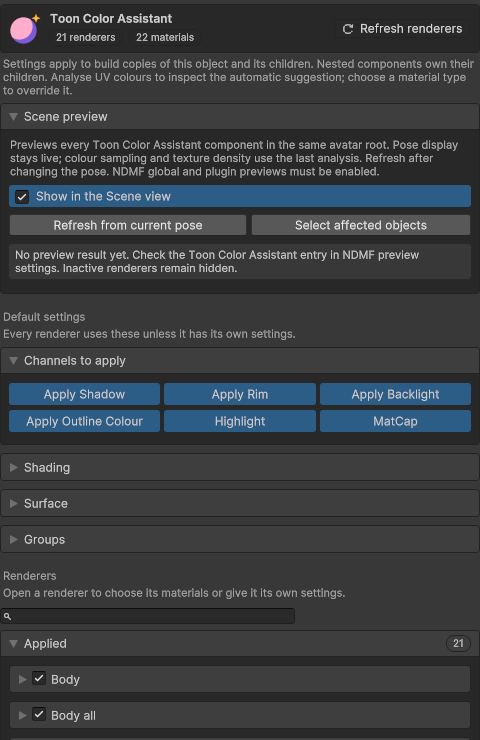
Adding it
Select the avatar root or an outfit object, then choose Add Component → Toon Color Assistant/Toon Color Assistant. The component collects the renderers and materials below it, including inactive children.
- If an outfit has its own component, that component handles the outfit's renderers.
- Objects tagged
EditorOnlyand their children are not collected. - After adding renderers or materials, press Refresh renderers. Targets without settings yet follow the Default settings.
Scene preview
While Show in the Scene view is on in the Scene preview section, the Scene view shows the result of every Toon Color Assistant component under the same avatar root. The preview is drawn only on NDMF's preview renderers; your materials and meshes are not changed. Turning it off lasts for this editor session and leaves the build settings alone.
- The pose stays live, but colour samples and texture density use the last analysis. After changing the pose, press Refresh from current pose.
- Select affected objects selects the objects the component actually changes.
- Renderers or materials the component cannot handle are skipped and listed under Notices. Issues you have to fix yourself, such as a lighting mode that ignores shadow colours, are listed under Problems. Each entry has Select and Exclude; Exclude stops the component applying to that renderer or material.
Default settings
Every renderer that does not use its own settings uses the Default settings.
- Channels to apply: choose which of shadow, rim, backlight, outline colour, highlight and matcap to apply.
- Shading and Surface: the same sliders and toggles as the main window's tabs of the same name. When generating surface textures you also choose whether to replace the existing ones.
The settings are stored on the component, so undo and prefab overrides work as usual.
Groups
When the same skin or hair is split across several renderers, each material picks its own colour and the shadow colours drift apart. Put the materials in a Group and they share one shadow palette made from the colour the members use most.
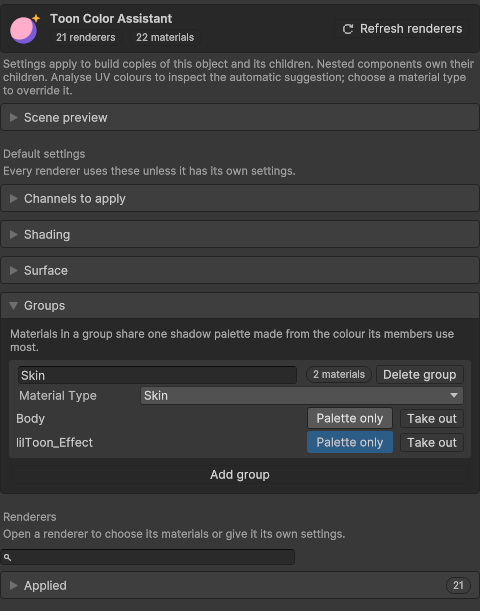
- Create a group with Add group, then set its name and Material Type. Members use the group's material type instead of their own.
- Open a renderer and pick the group in a material's Group field to add it. Take out removes it again.
- When a differently coloured material, such as an expression or blush, should not pull the group colour, turn on Palette only for that member. It still receives the group palette, but is left out when the group colour is chosen.
Renderers and materials
The renderer list is split into Applied and Not applied and shows the object hierarchy as folders. Type a renderer or material name in the search box to find it. Clearing a folder's checkbox stops the component applying to every renderer under that object.
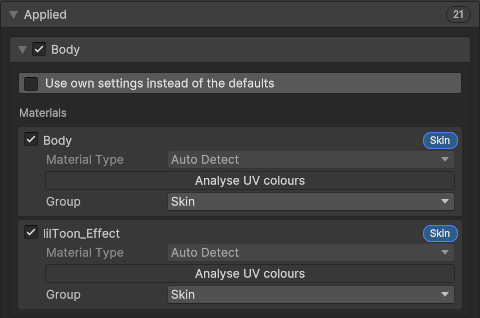
Open a renderer to set:
- Use own settings instead of the defaults: this renderer uses its own channel, shading and surface settings. The same material can be set differently on each renderer.
- The material checkbox: clear it to skip that material.
- Material Type: auto detection by default. A type you choose takes priority. A material in a group follows the group's material type.
- Analyse UV colours: shows which material type the colours inside that material's UVs suggest. The result is a hint; a texture pattern alone never decides the material type.
- Group: the group to put the material in.
The component takes a material's base colour from the colour its surface uses most, not from an average of every colour on it. A texture with dark areas in it no longer makes skin look dull and grey.
Building
When you build the avatar with NDMF, the component is applied to the copy. Generated surface textures use power-of-two resolutions, mipmaps and Unity normal encoding for Windows VRChat shaders. On a build target other than Windows, surface textures are skipped and listed under Notices; colours are still applied. Unsupported setups, such as animated material swaps, are reported under Problems.