Quick start
This is the path from an empty window to a colour on one material. What each slider means is on the feature pages.
1. Open the window
Open Tools > Toon Color Assistant.

2. Pick a surface
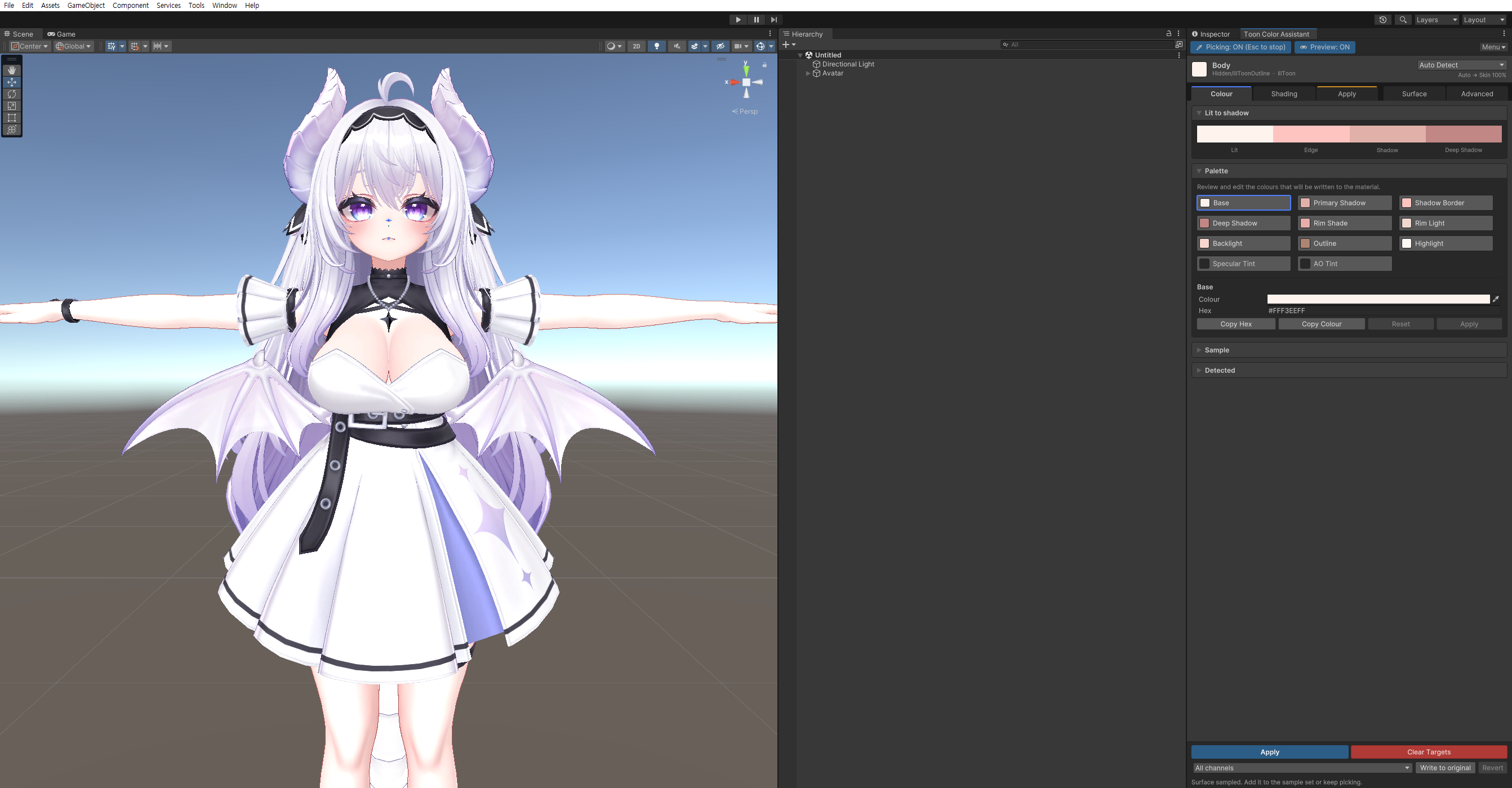
Click Pick From Scene, then click the avatar in the Scene view. Esc leaves pick mode.
3. Read what was picked
The top of the window shows the material, the shader, the sampled colour, and the material type. If skin was detected as cloth, change the dropdown. The type decides the direction of the shadow colour.

4. Look at the proposed colours
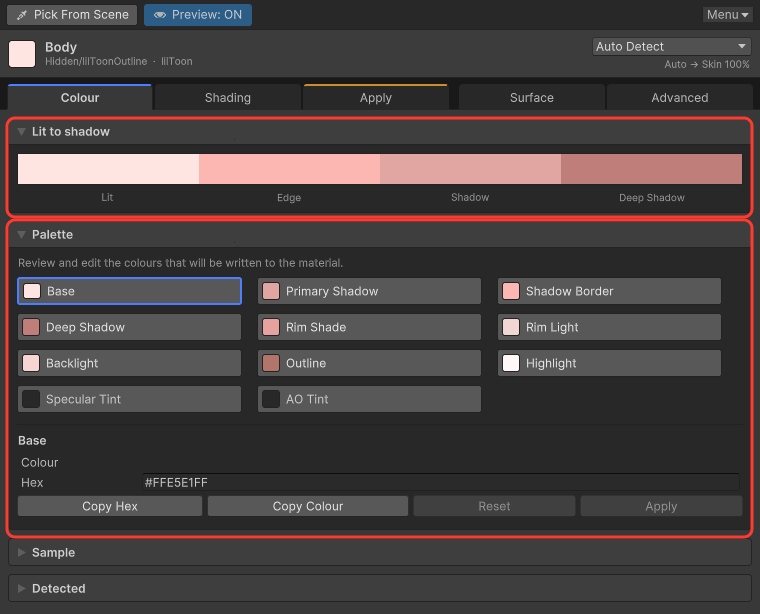
The Colour tab shows the sampled colour and the palette. Click a colour in the palette to edit that one.
5. Shape the shadow
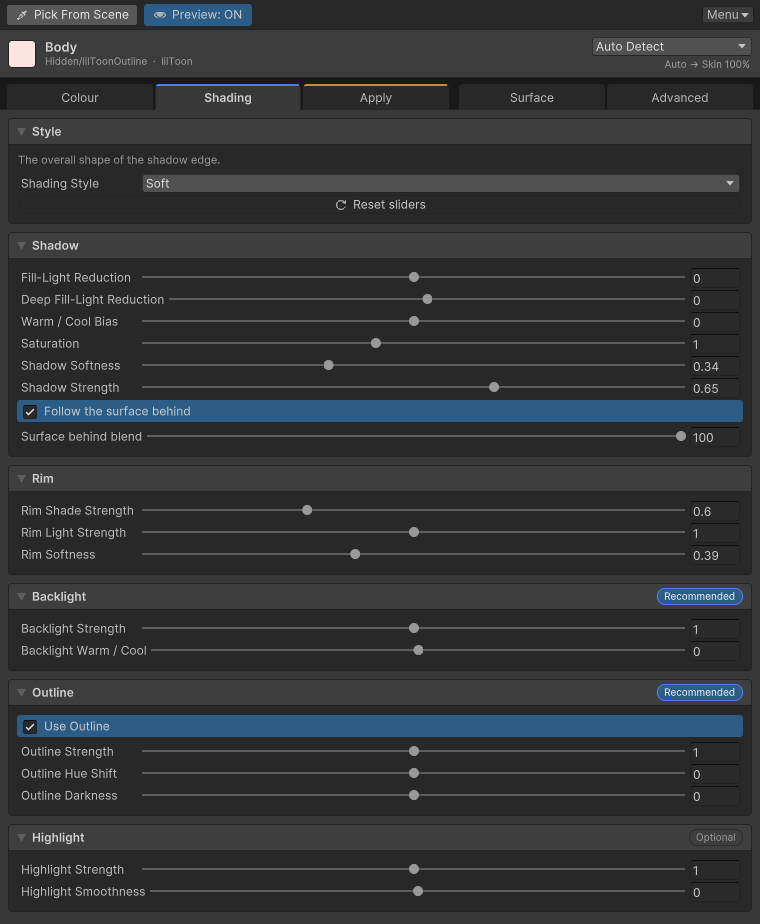
On the Shading tab, pick a style and adjust shadow, rim, backlight, outline, and highlight. Moving a slider here recalculates the palette on the Colour tab.
6. Write it to the material
Preview is on when the window opens, so you can see the result in the Scene view before saving it. When it looks right, click Apply at the bottom. The scope next to it chooses which channels are written, and Write to original / Write to a copy chooses the asset.

Next: Colour, Preview, and Troubleshooting.