Apply
The bar at the bottom writes the material you just picked. The Apply tab collects several materials and runs them the same way.

Write the current material
- Click Apply.
- Choose the channels in the scope next to it. All channels writes every supported channel.
- Write to original writes the current material asset. Write to a copy creates a sibling copy, or reuses the copy already created.
- Revert puts the current material back to the moment just before the latest apply from this window.
Write to a copy assigns the copy to the matching renderer slots in loaded scenes and leaves the original asset alone. If you never picked a surface in the scene, there is no slot to assign, and the original is left alone too.
Apply is recorded in Unity's undo. Ctrl+Z and Ctrl+Y work as usual.
What is decided along with the write
Apply options on the Apply tab has two switches.
While Set all colours and numeric values automatically is on, strength, border, and blur are written with the colours, and a gloss matcap is generated and assigned too. Off writes colours only.
Also turn off optional features decides whether backlight and highlight marked Optional are turned off. Off leaves them as the material already has them. Turn off not recommended features decides whether backlight, highlight, and gloss marked Not Recommended are turned off. It is on by default; off leaves those features as the material has them and still applies their colour. Recommended is always turned on. Shadow and rim are turned on when you apply. The outline does not follow these switches. It follows Use Outline on the Shading tab.
Several materials
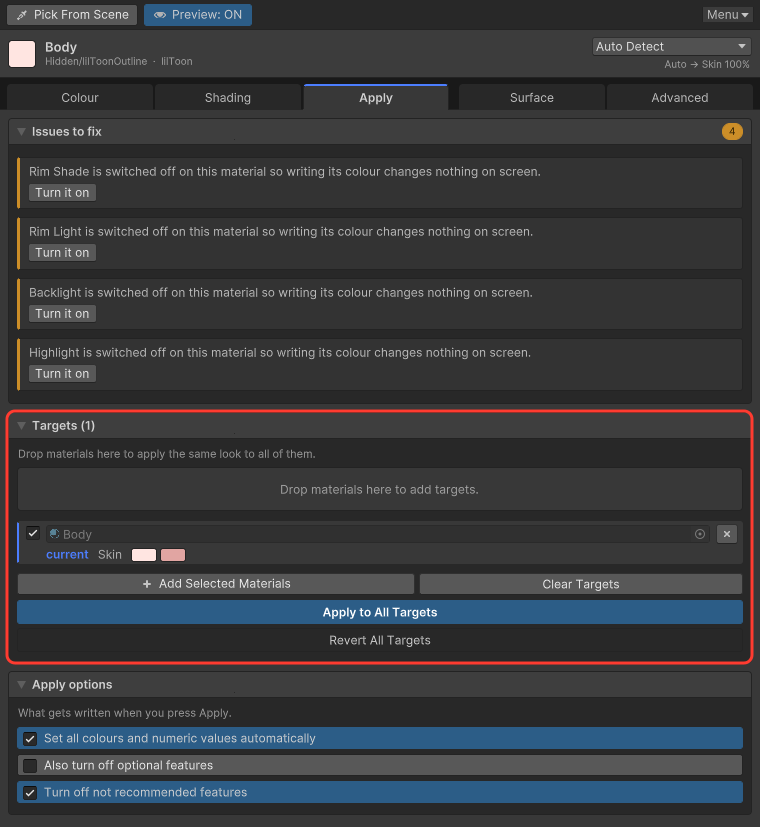
Two ways to add a material:
- Drag it onto Drop materials here to add targets.
- Click Add Selected Materials for materials selected in the Project window.
Only rows with Include checked are part of Apply to All Targets. Remove drops that row. Revert All Targets restores the saved state of the included targets.
Each row shows the material's sampled base colour and the primary shadow it will receive. Every target uses the picked material's palette and material type. A target whose base colour is darker than the shared shadow gets the nearest colour it can show. Preview follows the same set. How that works is on Preview.
Settings that have to change before anything shows up
Materials whose shader settings would ignore the written colour are gathered under Issues to fix, above the list. The button under each reason changes only that setting. Examples are Switch to Multilayer Math, Set outline tint mix to 0, and Turn it on. Nothing changes until you click, and the click can be undone.