Colour
The Colour tab builds the palette for the material from the surface you picked. Until you pick a surface in the scene, the palette is empty.
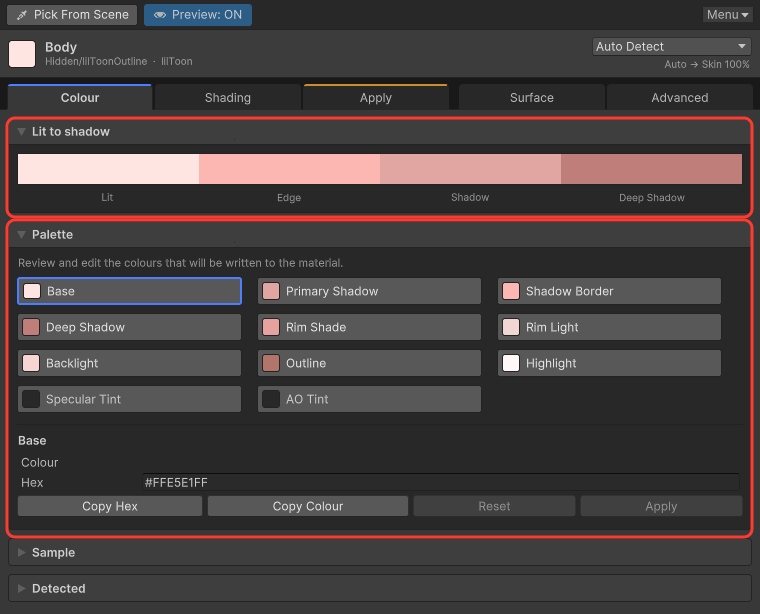
Palette
Proposed colours come from the material type and the sample you picked. Lit to shadow reads lit, border, shadow, then deep shadow.
| Colour | Where it goes |
|---|---|
| Base | The colour read from the surface. It is the lit reference. |
| Primary Shadow | The shadow on broad surfaces turned away from the light. |
| Shadow Border | The transition between the lit side and the primary shadow. |
| Deep Shadow | Creases and places that are deeply occluded. |
| Rim Shade | The dark colour that separates the silhouette. |
| Rim Light | The bright colour on the lit edge. |
| Backlight | Light from behind, or light passing through the model. |
| Outline | The colour of the outline. |
| Highlight | Bright highlight areas. |
| Specular Tint | Tint added to a sharp specular reflection. |
| AO Tint | Tint mixed into the AO Map. |
Edit one colour
- Click the colour in Palette.
- Change it in the Colour field that appears below. You edit in the colour space shown on screen.
- To move it elsewhere, use Copy Hex or Copy Colour.
- To return to the proposal, keep that colour selected and click Reset. Only the channel you edited comes back.
You can edit Base too. Do that when the sample missed the surface you meant. Reset does not apply to Base. Other colours you edit by hand keep — Manual Override even when the proposal is recalculated.
Combine several spots
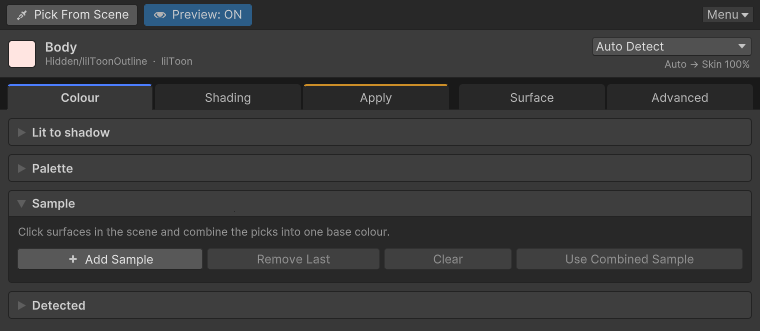
Use Sample when one point is messy, or when you want the colour of the surface rather than one texel.
- Click the first spot in the scene.
- Click Add Sample.
- Click Add Sample after every further spot.
- Click Use Combined Sample.
The combined colour uses samples from the current material only. A warning appears when samples from another material are in the set. The warning does not delete them, and their colours are not mixed in.
White and grey
A nearly white or grey sample has no hue. Shadow and light colours are built in the direction the material type defines. Skin gets a warm shadow. Metal gets a different response.
Base in the palette stays the colour that was actually read. The stand-in hue is used only in the calculation. It does not repaint the reported base.