Preview
The preview uses the NDMF preview feature and is drawn only in the Scene view. The original mesh and the values in the scene are not changed.
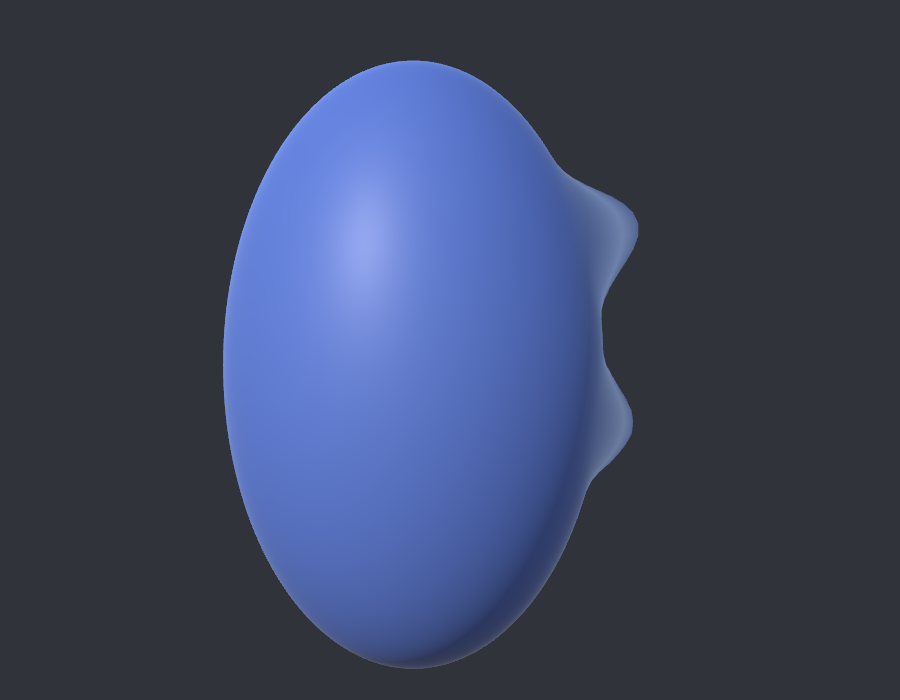
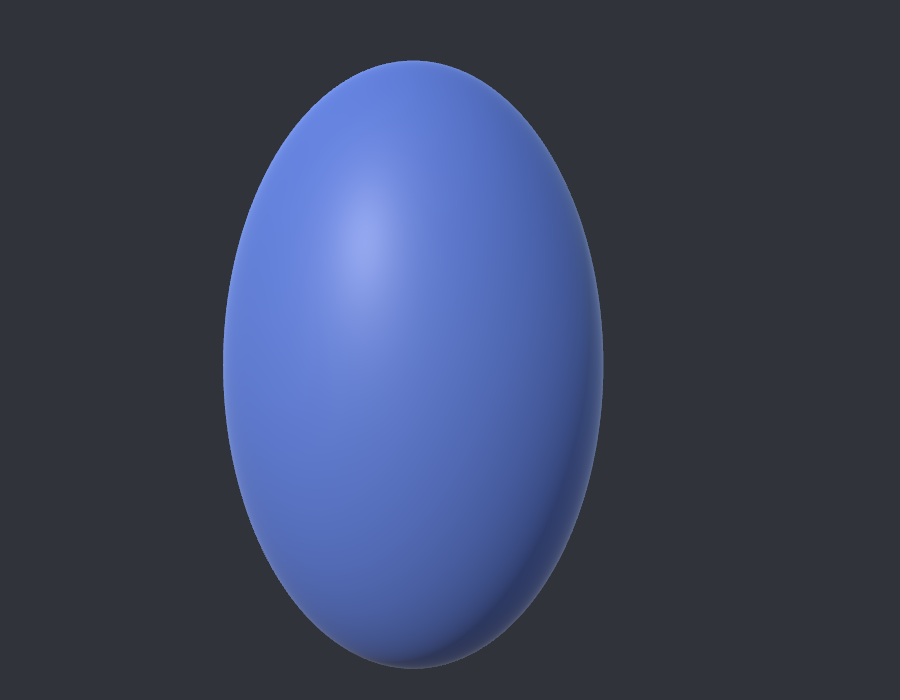
- The preview is on from the start, so turning the clothing on or reopening Unity shows the same result as the avatar build right away. Stop preview keeps it off until Unity is reopened or scripts reload, and changing any value on an entry turns it on again.
- Use the Stop preview / Start preview button in the header to turn it off and on again. While the preview is on, the button is drawn pressed (Unity's pressed-button background and a highlighted border) and reads Stop preview.
- The Preview slider (0–100) on an entry is a check value that is not saved. Until you move it, the new shape key on the clothing is shown at Default value, as in the avatar build, and the body shape key keeps the value set in the scene.
- With Preview body too on, the body's original shape key of an entry whose Preview slider you moved is shown at the same value. Keep it on to check whether the clothing covers the body well.
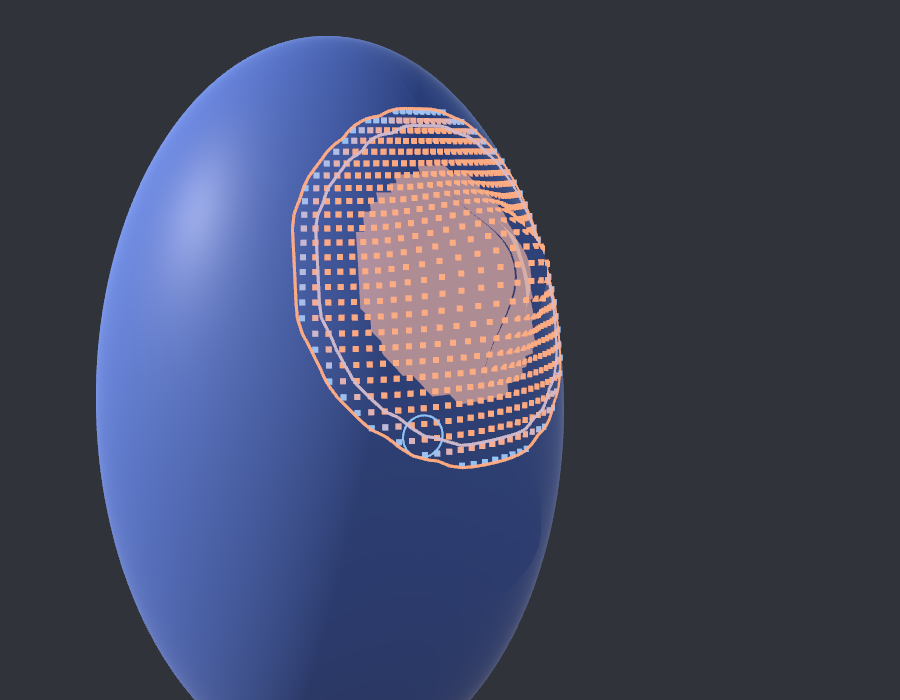
- With Show influence on, the Scene view draws the expanded entry like this.
- A colored dot on each clothing vertex shows how much the shape key moves that vertex. Blue is a weak movement and orange is a strong one. Change the size of the dots with Dot size; it is saved for this computer.
- The part of the body that the shape key moves is filled in translucent orange. Movement range and Smoothing range are both measured from this part. It is drawn over the clothing so that it stays visible under it.
- With the mouse over the clothing, a blue circle the size of Smoothing range is drawn at that point.
- While the preview is on and the component is selected, the Scene view always draws two lines on the clothing for the expanded entry's range. The orange line is where Movement range ends; clothing vertices outside it do not move. The lavender line inside it is where Movement fade starts. Both lines come from the distance to the moving part of the body, so they match the boundary the clothing actually gets. The lines are redrawn right away as you move the sliders.
NDMF's preview on/off list also includes Shape Key Transfer, so you can turn off all previews from this tool at once.